User Management
Manage users, assign roles, and control access with RBAC.
/admin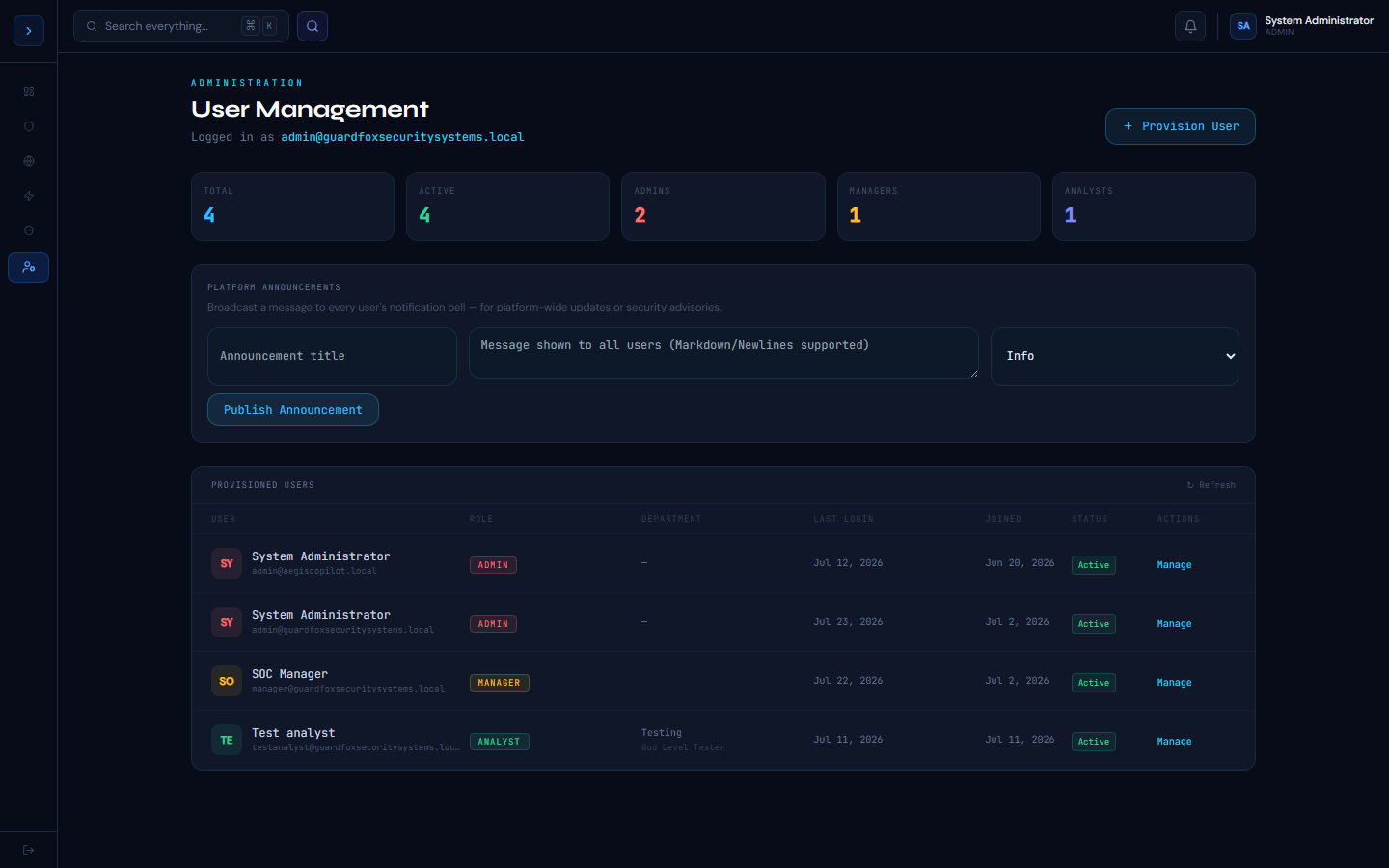
Role-Based Access Control
OverviewRole-Based Access Control (RBAC)
GuardFox Security Systems uses a 7-level role hierarchy. Higher roles inherit all permissions of lower roles.
| Role | Level | Typical user | Key permissions |
|---|---|---|---|
| READONLY | 1 | Executive / auditor | View dashboards, reports |
| ANALYST | 2 | Junior SOC | View alerts, SIEM, EDR |
| SOC_L1 | 3 | SOC Level 1 | Triage alerts, add notes |
| SOC_L2 | 4 | SOC Level 2 | Quarantine, forensics, SOAR |
| SOC_L3 | 5 | SOC Level 3 | Red team, advanced response |
| MANAGER | 6 | SOC Manager | User management, reports |
| ADMIN | 7 | Platform admin | Full access, settings, billing |
What each role can access
- ANALYST+ — Dashboard, SIEM, Alerts, EDR view, Threat Intel, Vuln Mgmt, Support
- SOC_L2+ — Forensics, SOAR, AI Triage, Attack Surface, Compliance, Shift Handover
- SOC_L3+ — Red Team BAS, Cloud Posture
- ADMIN only — Data Sources, User Management, AI Provider settings, Billing
Managing users
How to useManaging Users
Go to Administration → User Management (ADMIN role required).
Inviting a new user
- Click Invite User
- Enter their email address
- Select their role
- Click Send Invite
The invite email is sent via Zoho SMTP. If SMTP_HOST isn't configured, the invite is still created — the invite link is shown directly to the inviting admin instead of being emailed, so the flow works the same either way, just without an actual email going out. The link expires in 48 hours.
Changing a user's role
- Find the user in the table
- Click the role dropdown
- Select the new role
- Confirm — the change takes effect on their next page load
Reassigning a user's organization
Open the user's Edit modal — a Tenant Organization selector lets you move the user to a different org, or back to the "Default (Superadmin Workspace)" option to remove them from any tenant. Saving moves their membership immediately; every org-scoped view (alerts, SIEM, incidents, etc.) reflects the new organization on their next request. Reassignment is logged to the audit trail with the previous and new organization.
Disabling a user
Click the Disable toggle. Their account is deactivated immediately — existing sessions are terminated within 60 seconds. The user cannot log in but their data and audit log entries are preserved.
SSO users (Azure AD / Okta)
SSO users are created automatically on first login. Their role defaults to ANALYST. An admin must manually upgrade the role if needed. Role mapping from Azure AD groups or Okta groups can be configured in Settings → SSO → Role Mapping.