User Settings
Configure SSO, AI provider, notification channels, API keys, and platform preferences.
Route:
/settings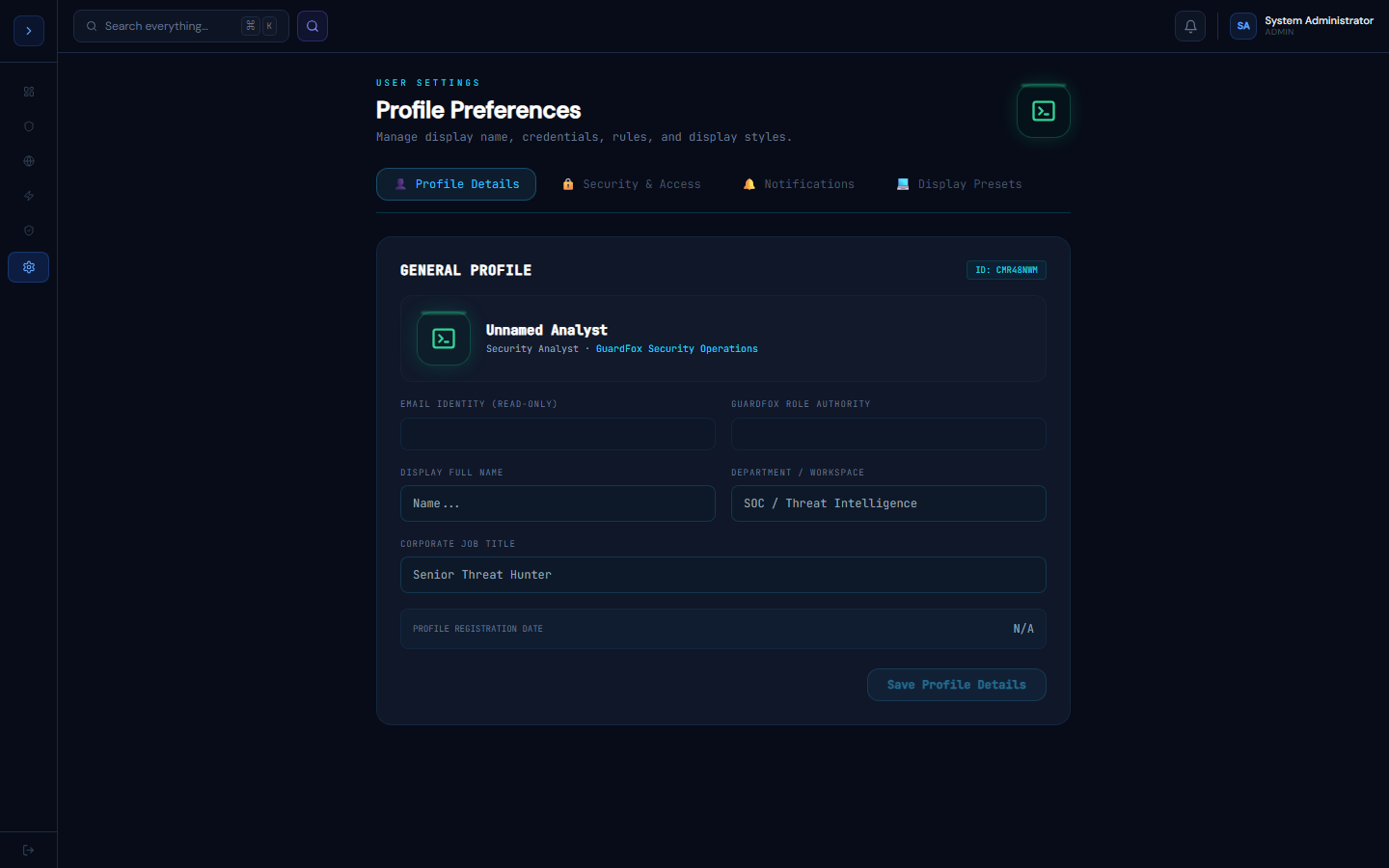
SSO Configuration
SetupSetting Up SSO
GuardFox Security Systems supports Azure AD and Okta for Single Sign-On via OIDC.
Azure AD
- In Azure Portal: App registrations → New registration
- Name: GuardFox Security Systems, Supported account type: Single tenant
- Redirect URI:
https://portal.guardfoxsecurity.com/api/auth/callback/azure-ad - Copy: Tenant ID, Client ID
- Create a client secret under Certificates & secrets
- In GuardFox Security Systems Settings → SSO:
Provider: Azure AD
Tenant ID: <from Azure>
Client ID: <from Azure>
Client Secret: <from Azure>Okta
- In Okta Admin: Applications → Create App Integration → OIDC
- Sign-in redirect URI:
https://portal.guardfoxsecurity.com/api/auth/callback/okta - Copy: Client ID, Client Secret, Okta Domain
- In GuardFox Security Systems Settings → SSO:
Provider: Okta
Domain: yourcompany.okta.com
Client ID: <from Okta>
Client Secret: <from Okta>Notification channels
SetupNotification Channels
Configure where GuardFox Security Systems sends alerts for P1 incidents, AI triage completions, and shift handovers.
Slack
- Create a Slack App at api.slack.com → Incoming Webhooks
- Enable and add to your #soc-alerts channel
- Copy the Webhook URL
- In Settings → Notifications → Slack: paste the URL
- Test with the Send Test button
Email (SMTP)
SMTP Host: smtp.yourprovider.com
Port: 587
Username: alerts@company.com
Password: <app password>
From: GuardFox Security Systems Alerts <alerts@company.com>Microsoft Teams
- In Teams channel: Connectors → Incoming Webhook
- Copy the webhook URL
- In Settings → Notifications → Teams: paste the URL
PagerDuty
- In PagerDuty: Services → + New Service → API Integration
- Copy the Integration Key
- In Settings → Notifications → PagerDuty: paste the key
P1 alerts route to PagerDuty by default; P2/P3 go to Slack and email.
Note: the Teams and PagerDuty credentials above are for your personal notification routing. The org-wide outbound integrations (Jira, ServiceNow, PagerDuty, Opsgenie, Teams, Slack, Discord) used by SOAR playbook actions are configured separately on the Integrations page (ADMIN only), not here.